How to install TiviMate on Android phone or tablet
This is the easiest install of the lot. TiviMate is right in the Play Store, so there’s no Downloader, no code 272483, no developer mode — search, install, add your playlist, done in about three minutes.
One thing to set expectations: TiviMate is built for the big screen, so on a phone you get a vertical channel list rather than the TV grid. It works perfectly for checking a game on the go — just don’t expect the 10-foot interface. And as always, TiviMate is only the player; you need your own IPTV subscription (Xtream Codes or M3U) for channels.
What you need
- Any Android phone or tablet on Android 5.0 or later
- Active IPTV credentials — Xtream Codes or an M3U URL
- About 3 minutes — no developer mode, no sideloading
Install TiviMate from Google Play
Find TiviMate on Google Play
Open the Play Store, search TiviMate IPTV Player, and pick the app by NZERINC LLC — that’s the only official one. Tap Install.
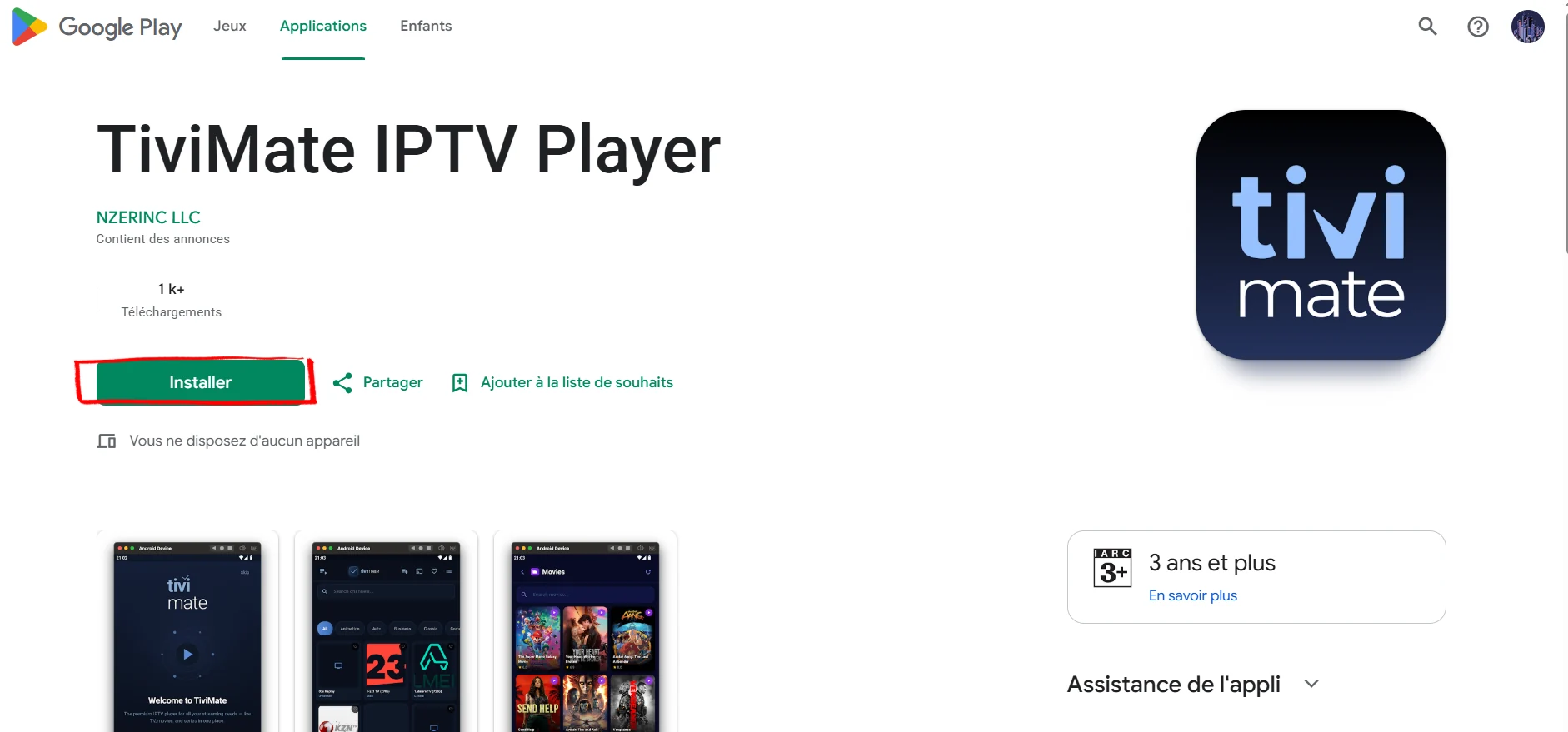
✓ Part 1 done. TiviMate is installed. Open it to connect your playlist.
Connect your IPTV playlist
Tap Add Playlist
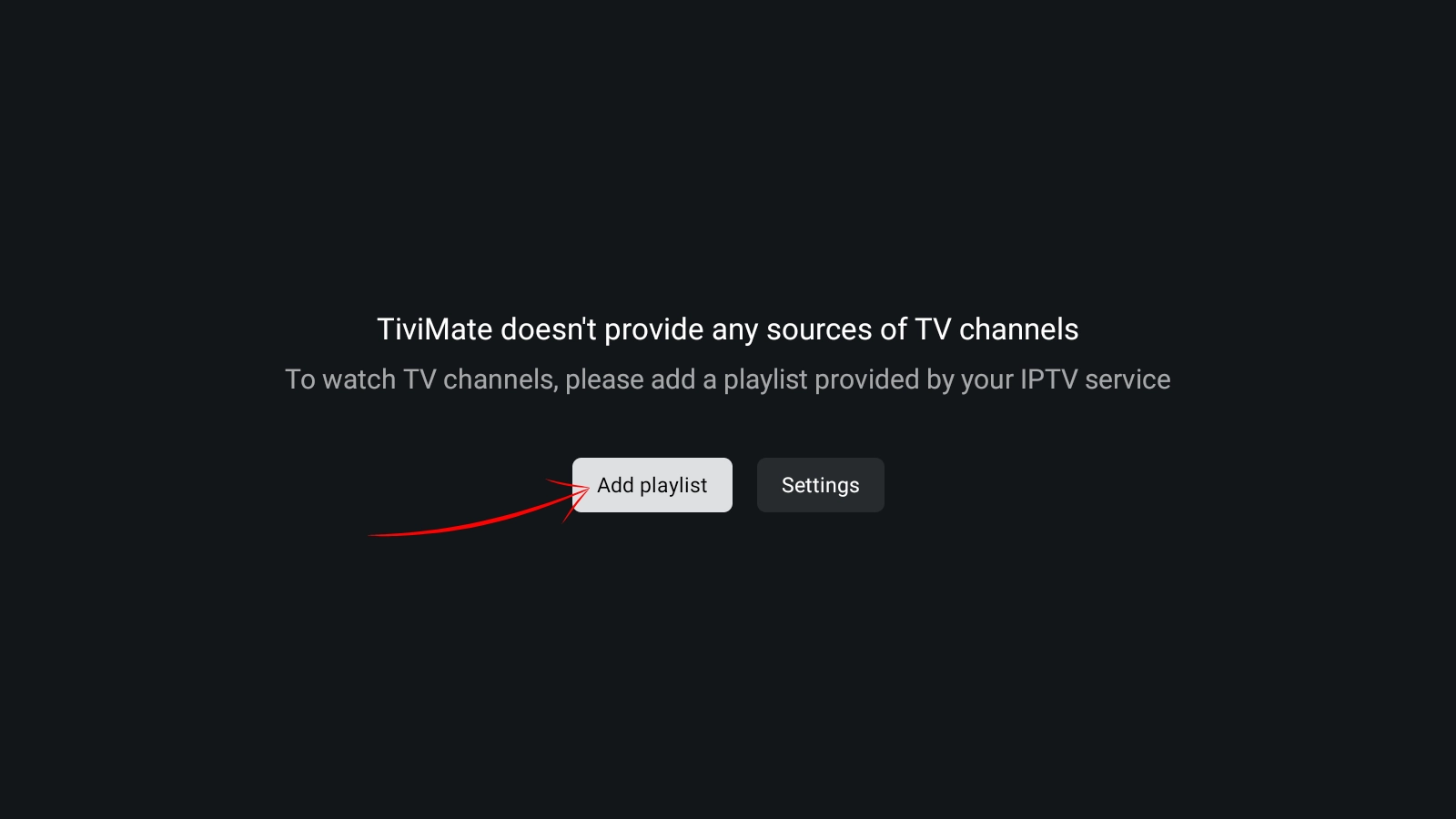
On first launch TiviMate says “doesn’t provide any sources of TV channels” — normal. Tap Add Playlist.
Pick your connection type
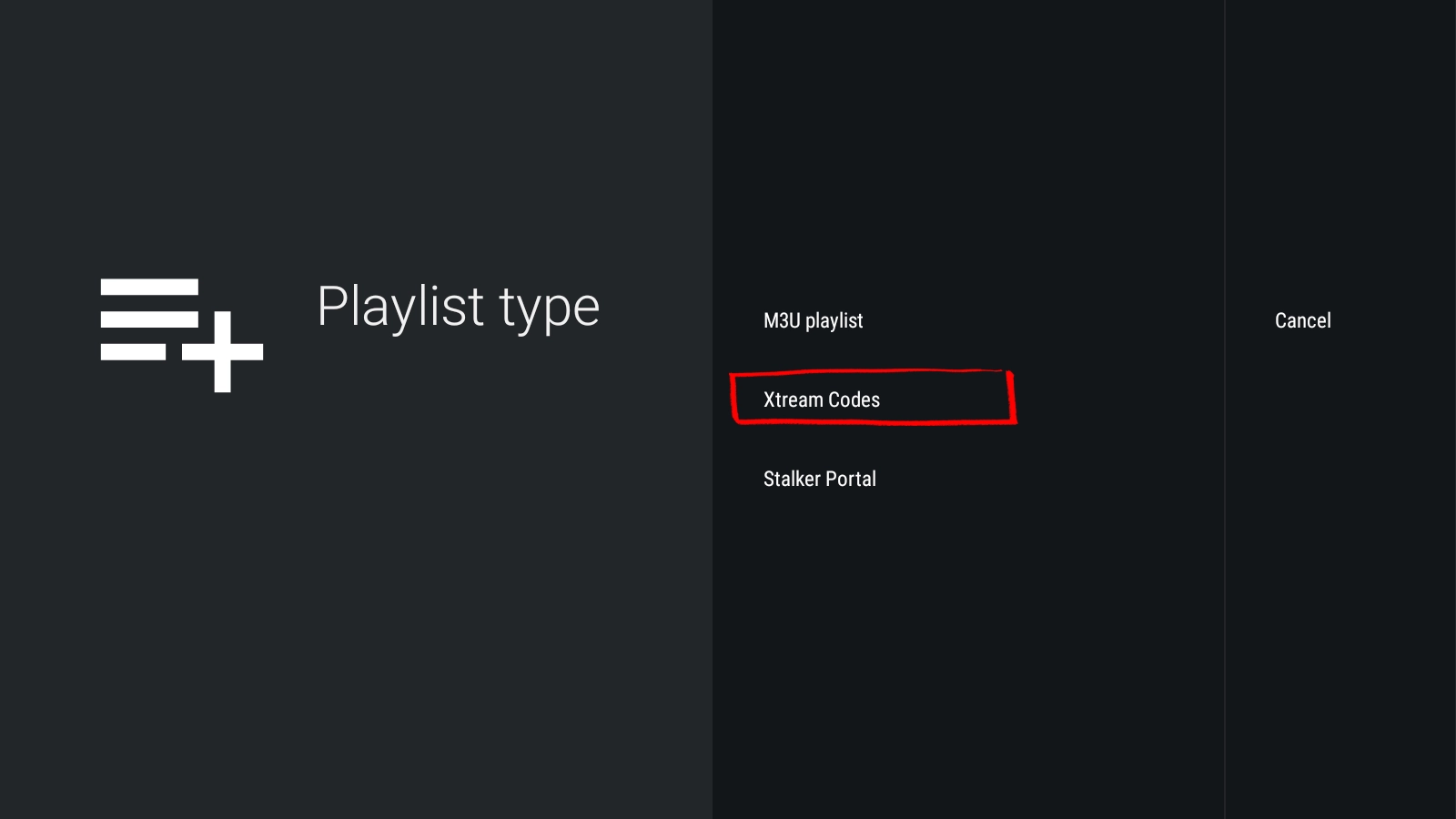
Choose Xtream Codes if you have a server URL, username and password (recommended), or M3U playlist if you only have a .m3u link.
Enter credentials and load channels
Type your details exactly as your provider gave them — they’re case-sensitive. Tap Next, keep Live TV and VOD ticked, then Done. TiviMate processes the list and your channels appear.
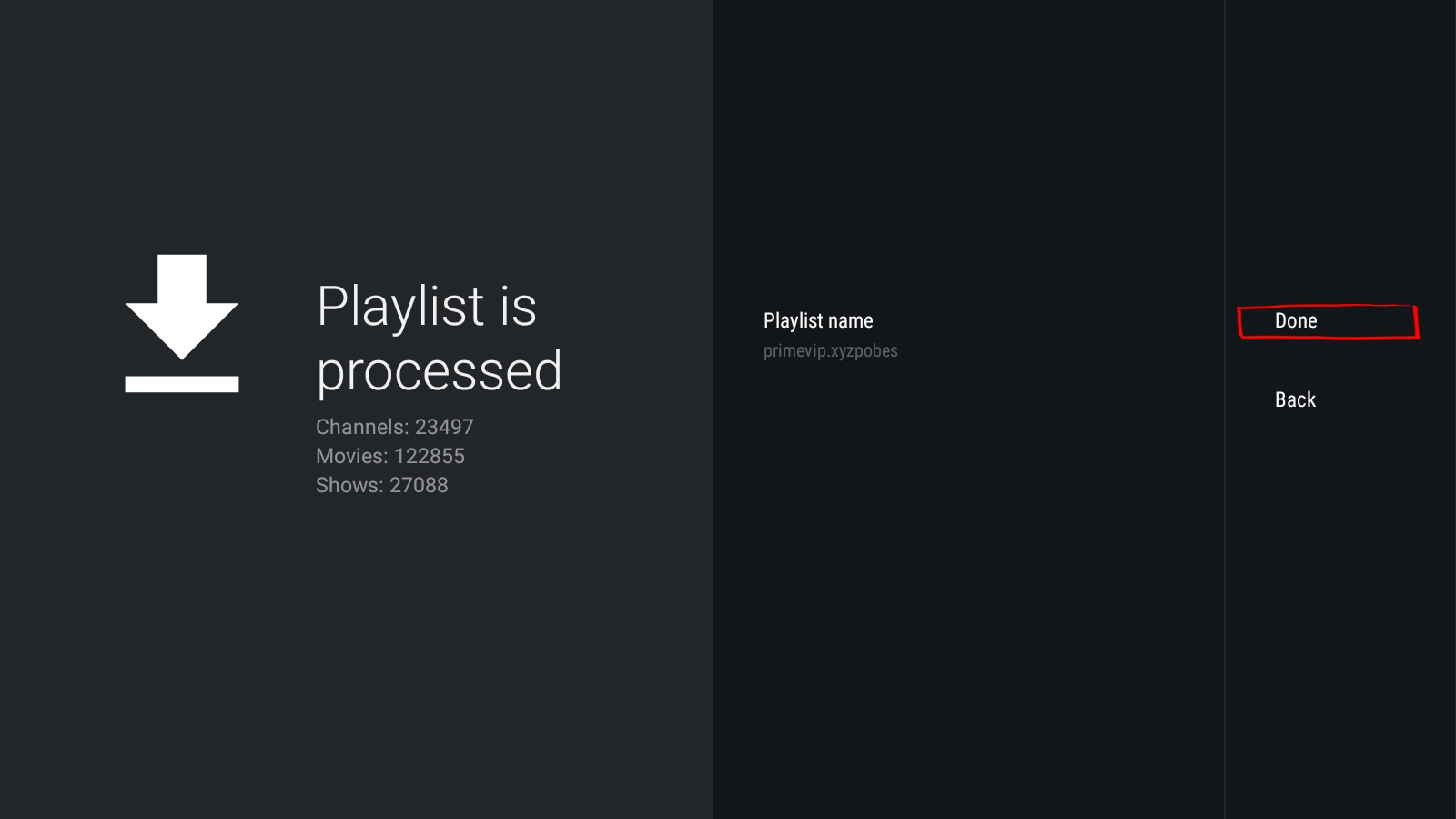
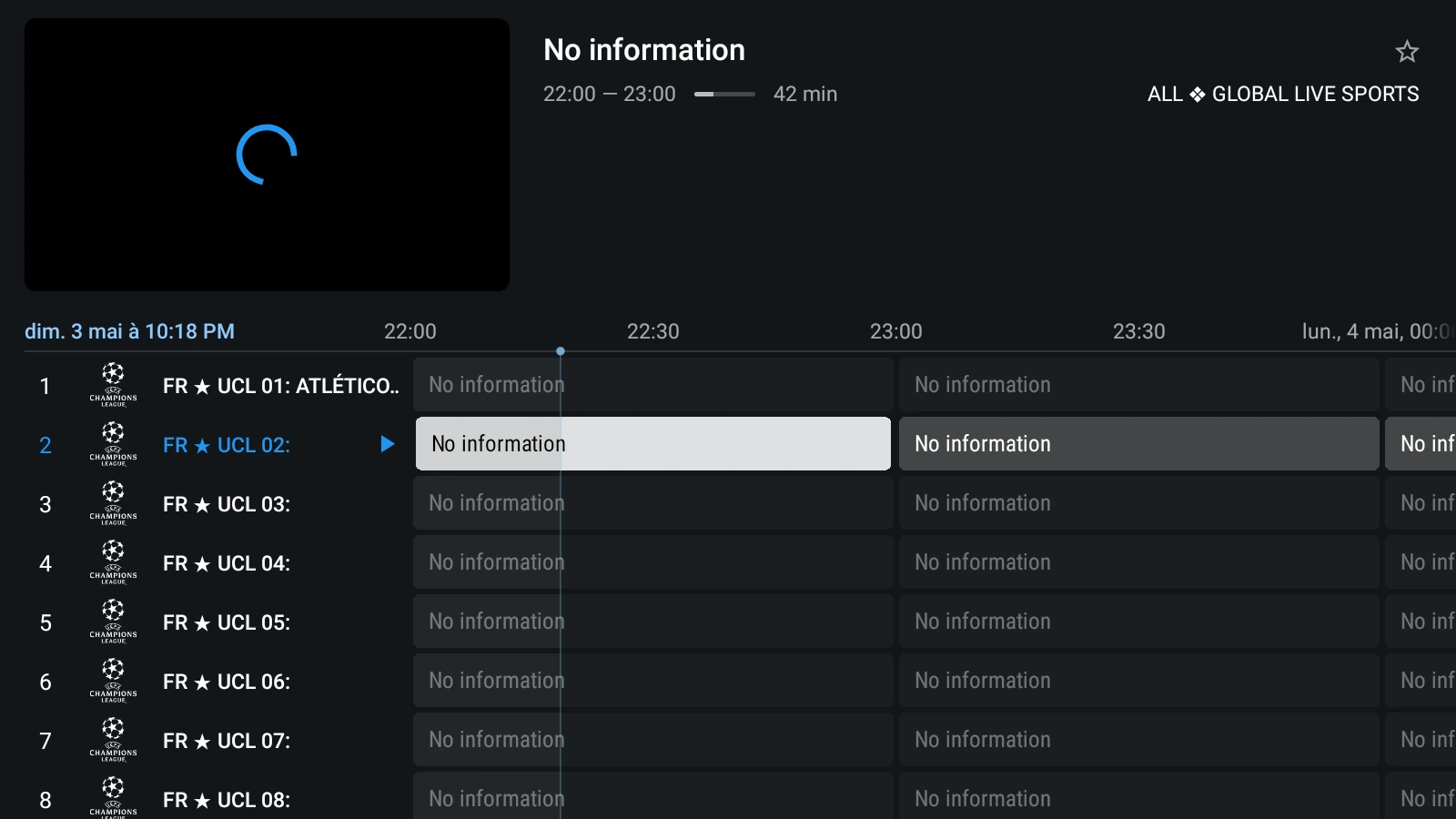
✓ Watching. Your channels and guide are live. Below is how the phone layout looks with an EPG.
Activate Premium on your phone
The phone is actually the easiest place to buy Premium, because the payment runs through the TiviMate Companion app on Google Play. One licence then covers all 5 of your devices — Fire Stick and TV box included.
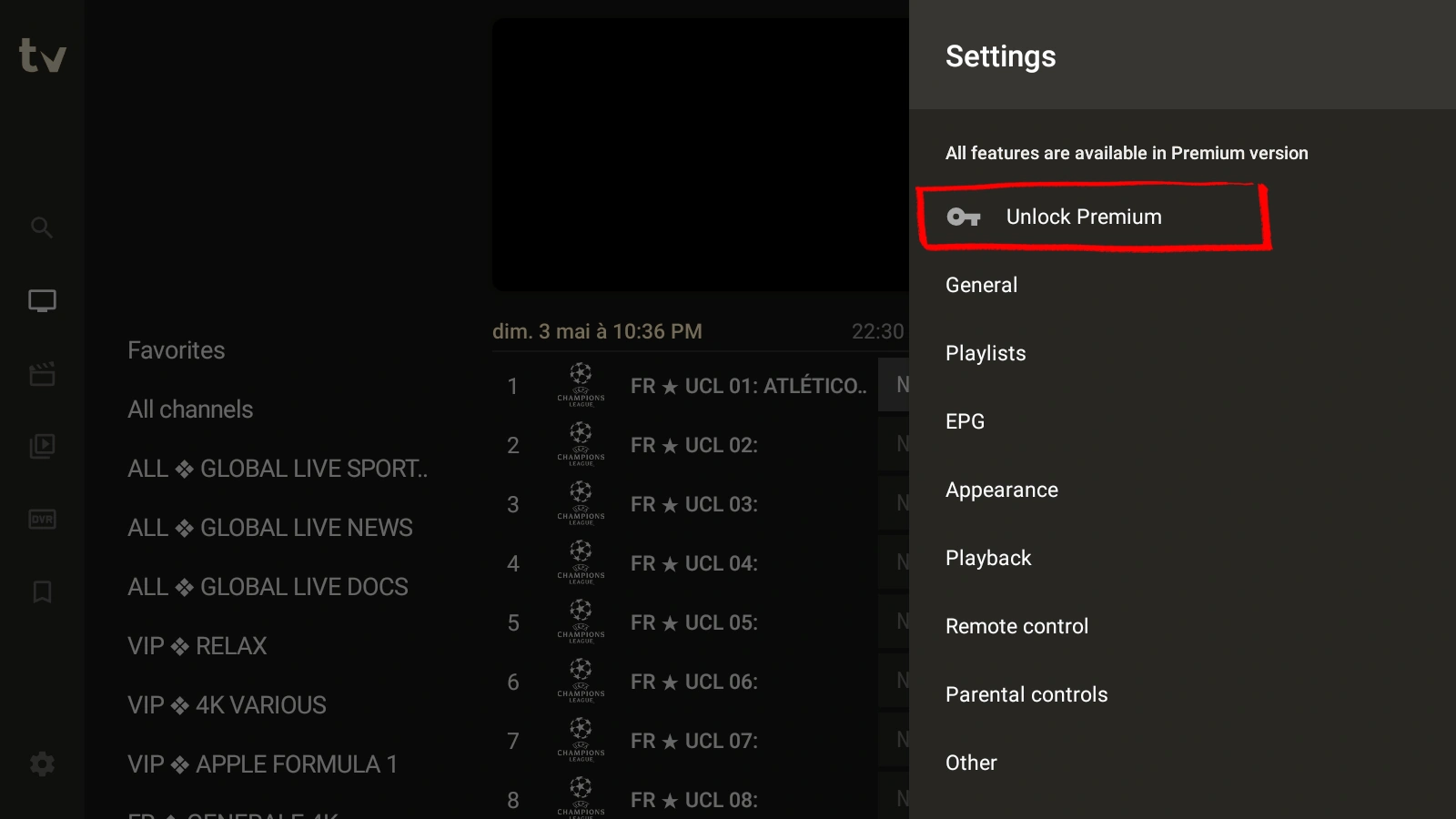
Open Settings → Unlock Premium
In TiviMate, open Settings from the sidebar and tap Unlock Premium.
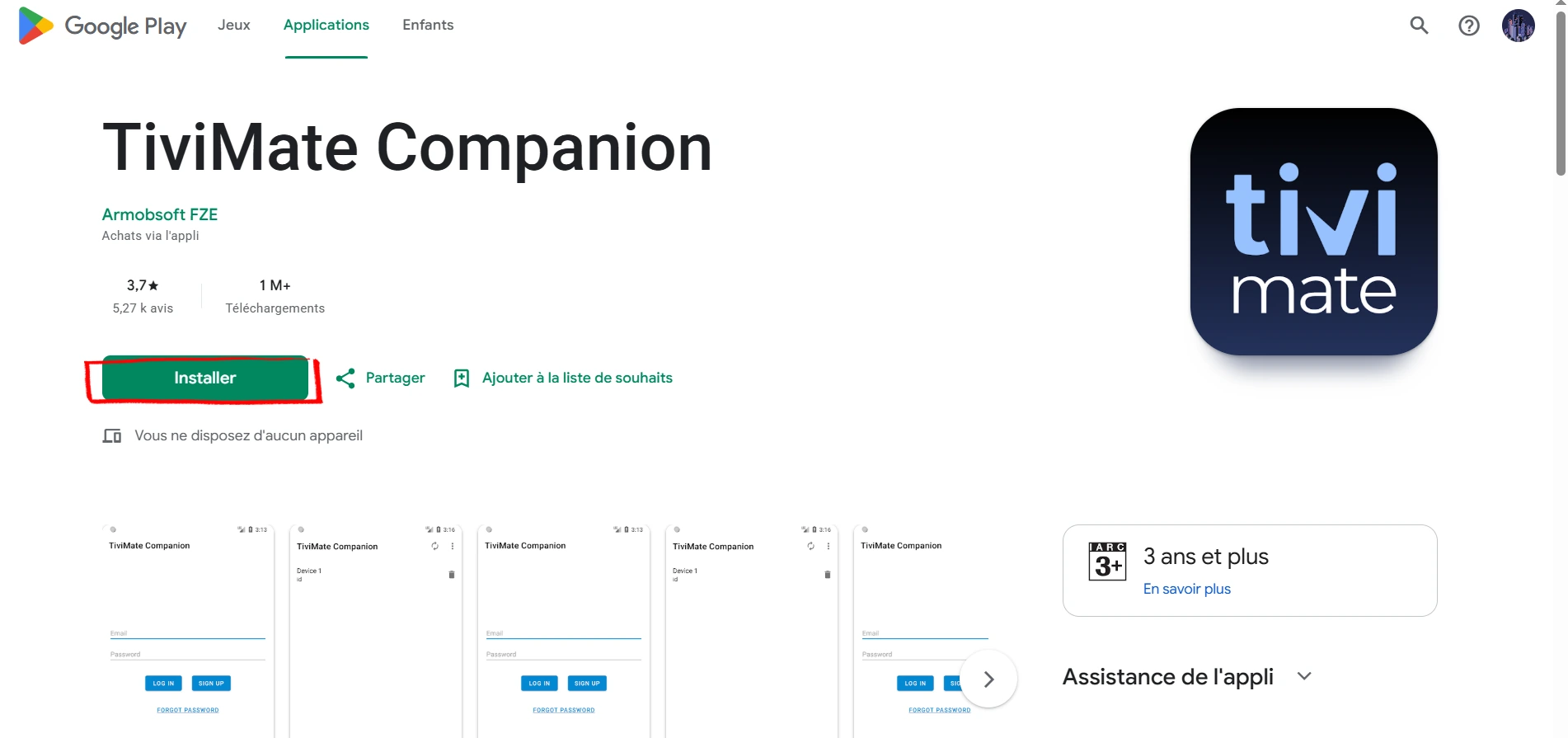
Install TiviMate Companion
Premium is bought through the separate Companion app by Armobsoft FZE. Install it from Google Play.
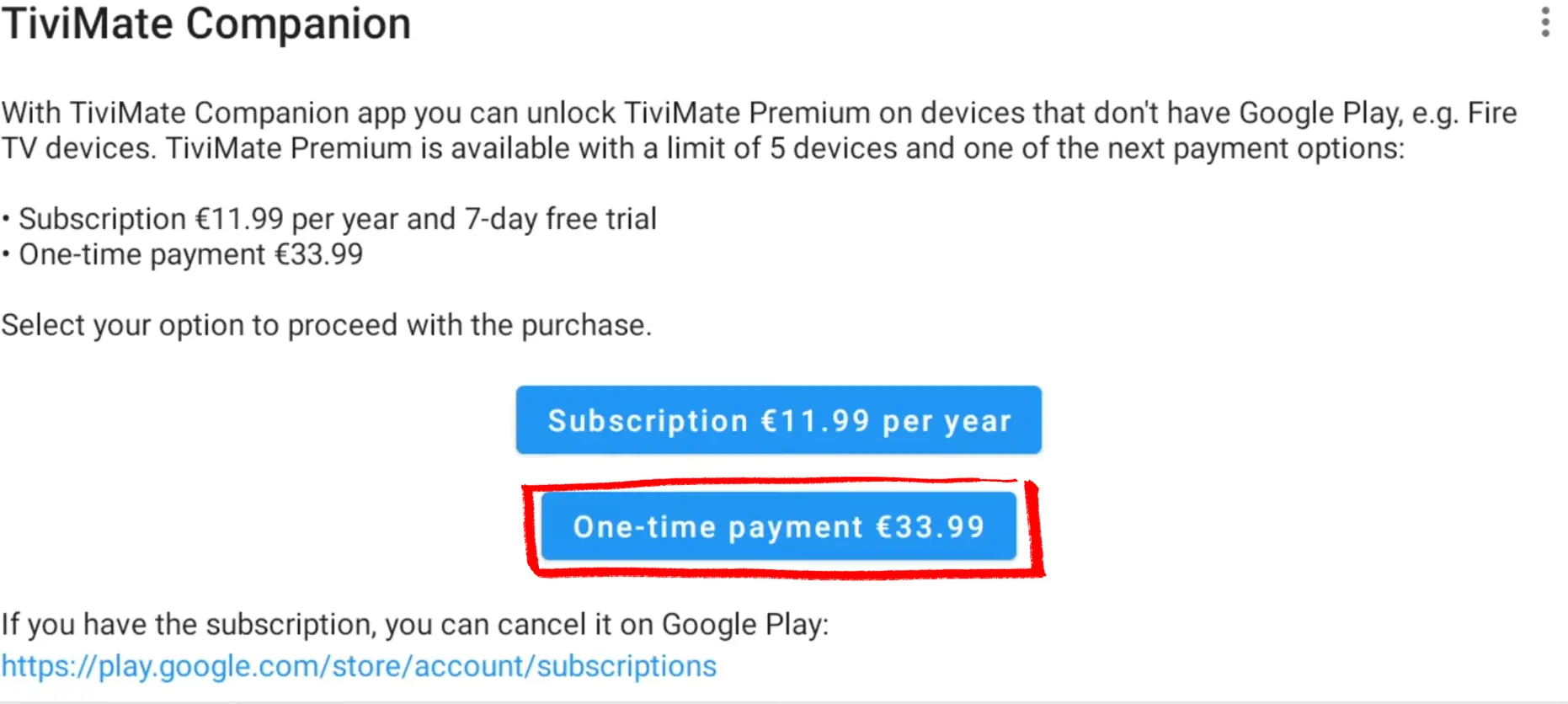
Create an account and pick a plan
Open Companion, sign up with your email, then choose Yearly (with a 7-day free trial) or Lifetime and pay through Google Play.
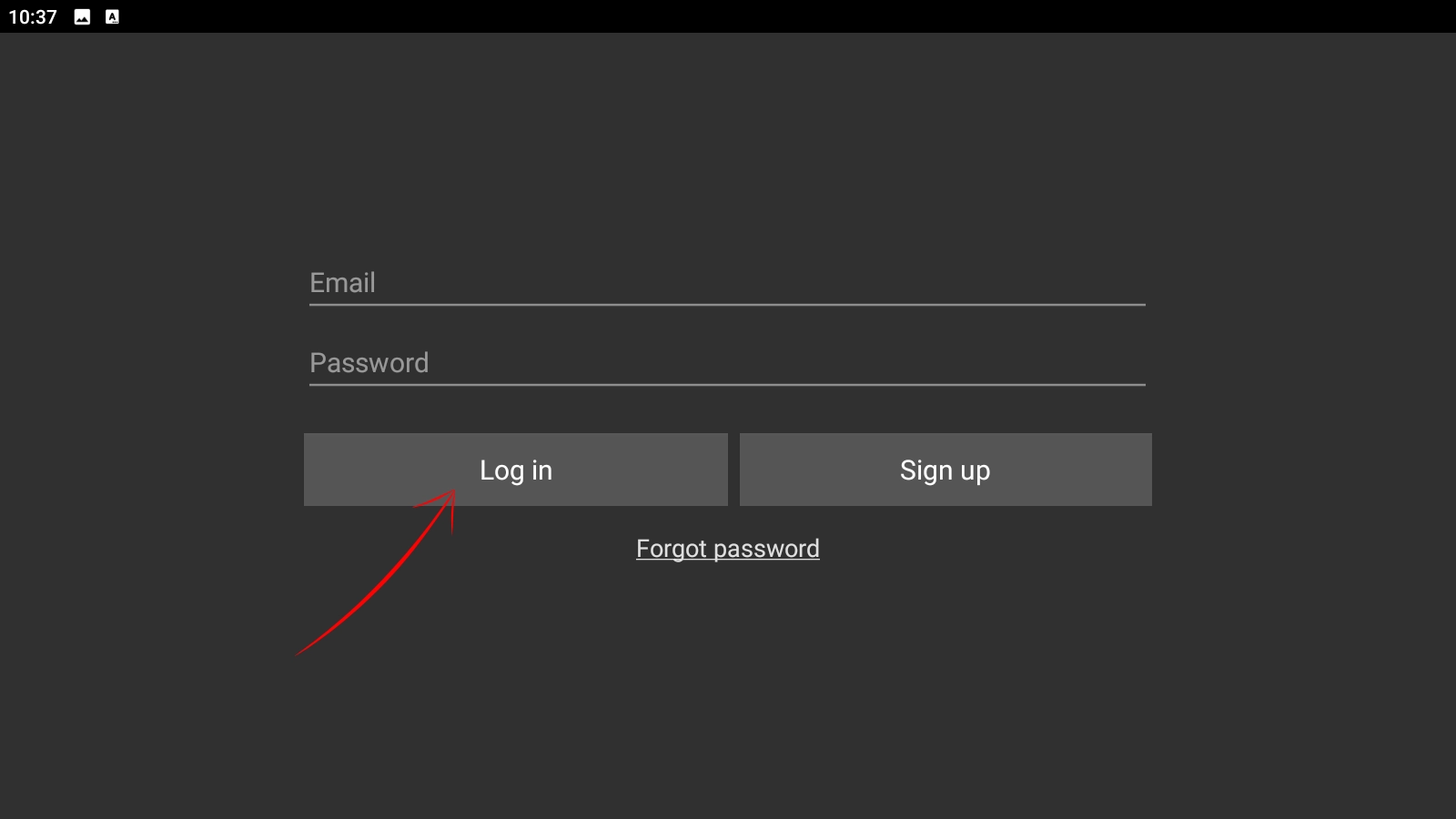
Log in to activate
Back in TiviMate, sign in with the same email and password. Premium activates immediately.
Watching on a phone: layout, data and casting
A few things behave differently when you run TiviMate on Android phone rather than a TV box.
- Vertical layout. On a phone the guide is a scrolling channel list, not the 10-foot grid. Turn the phone to landscape for a wider view and a proper video size.
- Mobile data. Live IPTV is a constant stream, so watching on 4G or 5G burns through data fast — an HD channel can use a couple of GB an hour. Stick to Wi-Fi unless your plan is unlimited.
- Casting to a TV. TiviMate has no Chromecast button; the only way onto a TV from the phone is full screen mirroring, which adds lag and drains the battery. If the TV is the goal, install TiviMate on the TV device itself.
Phone or TV box — which is right?
The phone is the best place to buy and test: install in three minutes, load a playlist to check it works, and pay for Premium through Companion. For actual living-room viewing, though, the experience belongs on a TV device, where TiviMate's grid guide and remote navigation were designed to shine. Plenty of people do both — set up and pay on the phone, then log the same account into a Fire Stick or Android TV box, since one Premium licence covers five devices.
Android phone + TiviMate FAQ
Does TiviMate work well on a phone?
It works fine, but it’s designed for TV. On a phone you get a vertical channel list instead of the grid guide. Great for quick viewing; for a full living-room experience, a Fire Stick or Android TV box is better.
Do I need code 272483 on Android phone?
No. That’s only for Fire Stick and boxes without the Play Store. On a phone, TiviMate installs directly from Google Play — no code, no sideloading.
Can I buy Premium on my phone and use it on my TV?
Yes — that’s the recommended way. Buy through the Companion app on your phone, then log in with the same account on your Fire Stick or box. One licence covers 5 devices.
Is there a free trial?
Yes. The yearly Premium plan through Companion usually includes a 7-day free trial. Cancel within the window in Google Play if you decide against it.
Can I watch TiviMate on mobile data?
Yes, but it is data-heavy — an HD channel can use 1–2 GB per hour. On a limited plan, watch on Wi-Fi. There is no offline download; IPTV is always a live stream.
Can TiviMate cast from my phone to a TV?
Not with a Chromecast button, because TiviMate does not have one. You can screen-mirror the whole phone, but it is laggy. For the TV, install TiviMate on a Fire Stick or Android box instead.
Next steps
Fire Stick guide
Download and install TiviMate on any Fire Stick in about 13 minutes using Downloader code 272483, step-by-step with screenshots, playlist…
Android TV Box
Install TiviMate on any Android TV box, Nvidia Shield, Onn 4K, Mi Box, from the Play Store or by sideloading with code 272483. Step-by-step…

TiviMate Premium
TiviMate Premium (aka TiviMate Pro): what it unlocks, real 2026 prices ($9.99/yr or $33.99 lifetime) and how to buy the subscription, plus…