How to download & install TiviMate on Fire Stick with code 272483
TiviMate isn’t in the Amazon App Store, so you sideload it through the Downloader app using the code 272483. That single detail is what trips up most first-timers. Follow the three parts below and you’ll be watching in about 13 minutes.
Quick reality check before you start: TiviMate is a player, not a channel provider. It won’t show a single channel until you feed it an active IPTV subscription — either Xtream Codes (server URL + username + password) or an M3U link. If your credentials are wrong, the install will look perfect and still play nothing, so have them ready and correct.
What you need
- A Fire Stick, Fire TV, or Fire TV Cube (any model)
- Active IPTV credentials — Xtream Codes or an M3U URL
- About 10–15 minutes (developer setup is a one-time thing)
Heads up: This guide installs the legal TiviMate player only. What you watch is entirely down to your IPTV provider — use a legitimate service.
What is the TiviMate downloader code?
The TiviMate downloader code is 272483. You type it into the Downloader app on your Fire Stick and it pulls the TiviMate APK straight from the developer, skipping the Amazon store entirely.
Amazon doesn’t list TiviMate because it’s a third-party player that sits outside its ecosystem. The code is simply a shortcut that resolves to the latest APK — the same one you’d get from tivimate.com. If the number ever fails, typing the full URL https://tivimate.com/ does exactly the same job.
Install TiviMate on Fire Stick in 3 parts
Three moving pieces: get the Downloader app, flip on the developer switches that let it install an APK, then pull TiviMate with code 272483. Parts 1 and 2 you only ever do once per device.
| Part | What you do | Time |
|---|---|---|
| 1 | Install the Downloader app | 2 min |
| 2 | Enable Developer Options + unknown apps | 5 min |
| 3 | Enter 272483, install TiviMate, add playlist | 6 min |
Get the Downloader app
Downloader (the orange one by AFTVnews) is a free file-grabber from the Amazon store. It’s the tool that installs apps Amazon doesn’t carry.
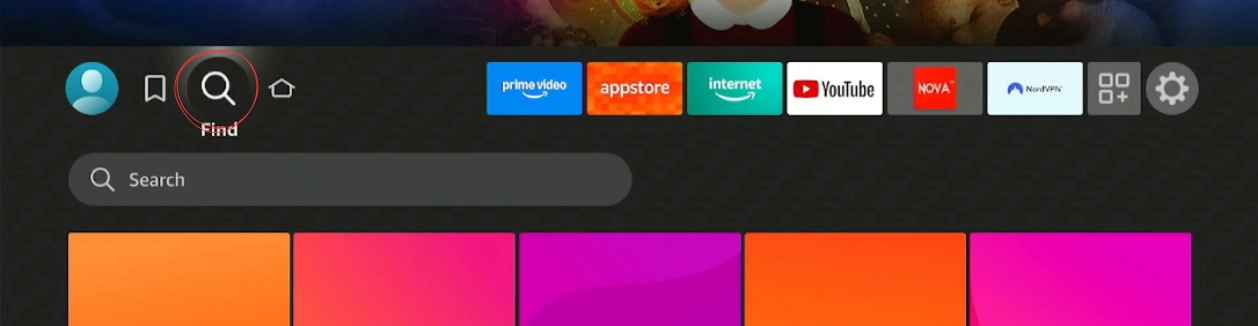
Search for Downloader
From the Fire TV home screen, open the Find menu (the magnifying glass, top-left) and type Downloader. It’s usually the first result.
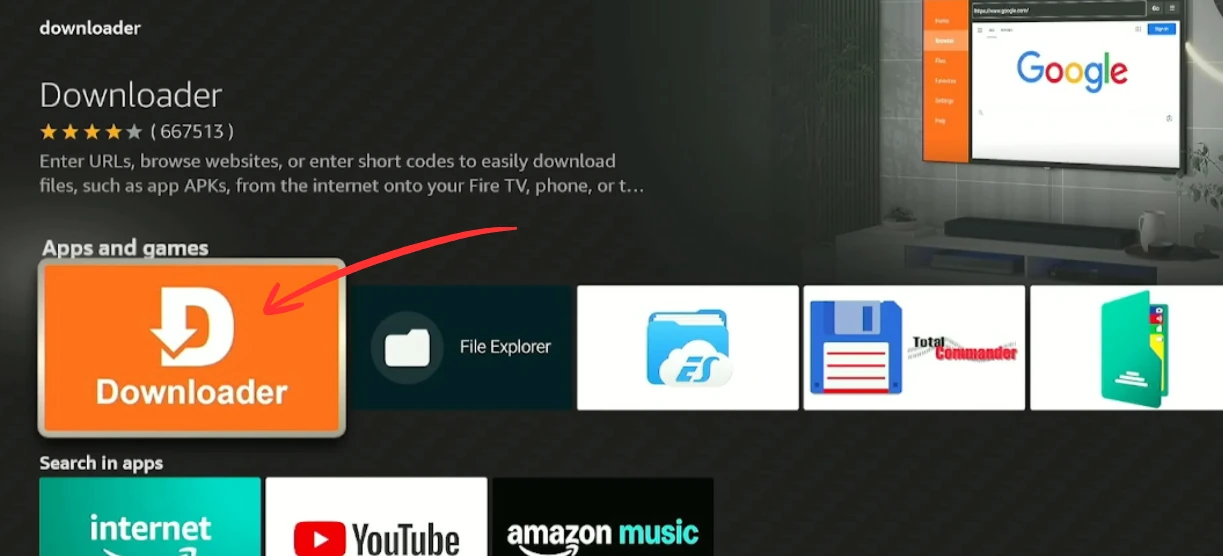
Download and install it
Open the Downloader result and select Download. It’s free and lands in about 30 seconds.
✓ Part 1 done. Downloader is installed. Leave it closed and move on.
Unlock developer options
Don’t skip this. Without it, Fire OS blocks the install. It’s a one-time, five-minute job per device.
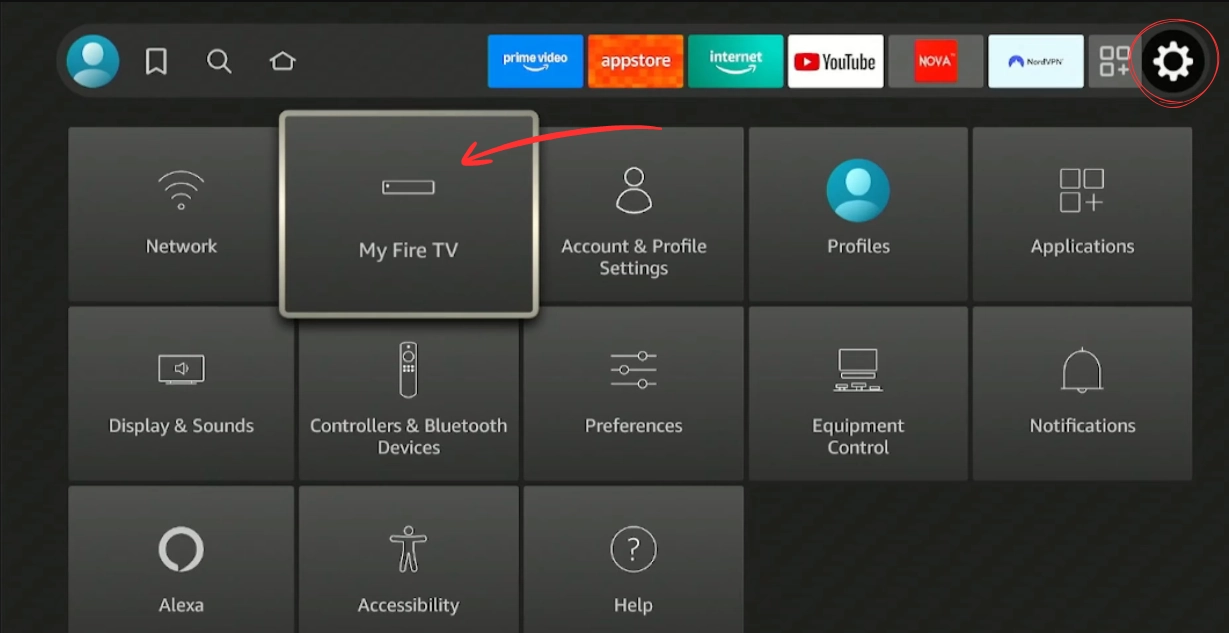
Open Settings → My Fire TV
Back on the home screen, open Settings (the gear), scroll right and pick My Fire TV.
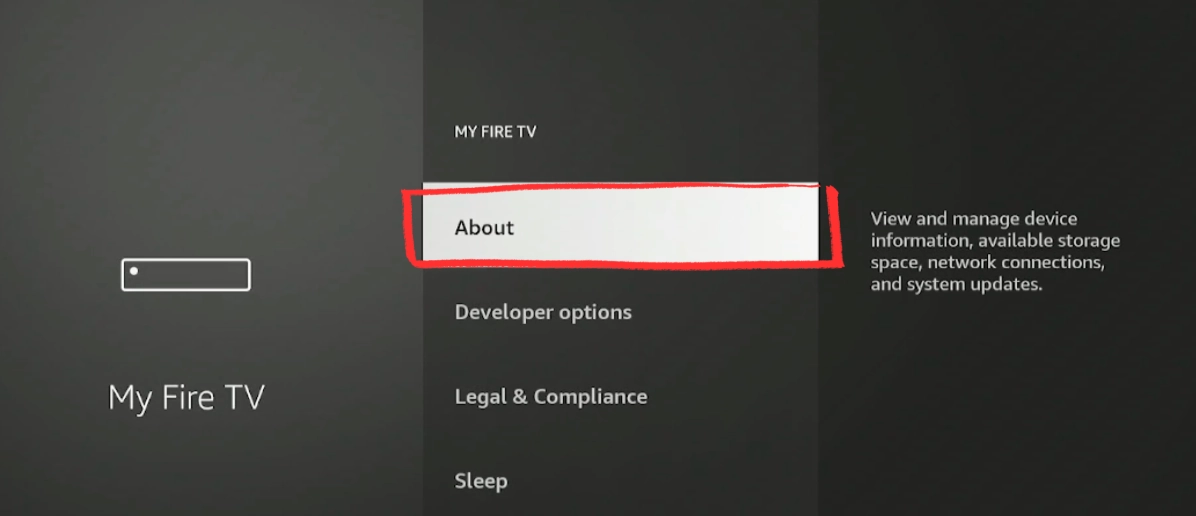
Open About
Select About — the developer switch is hidden in here.
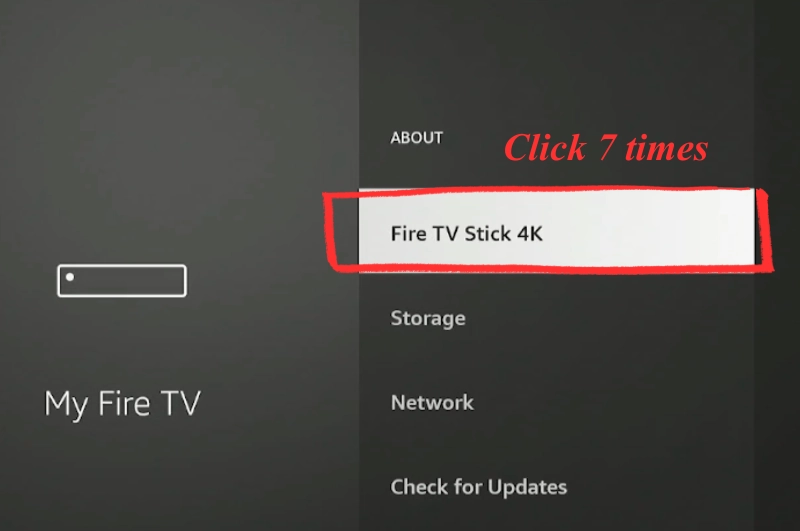
Click your device name 7 times
Highlight your Fire TV Stick name and press it seven times, fast. A little counter appears, then “You are now a developer.”
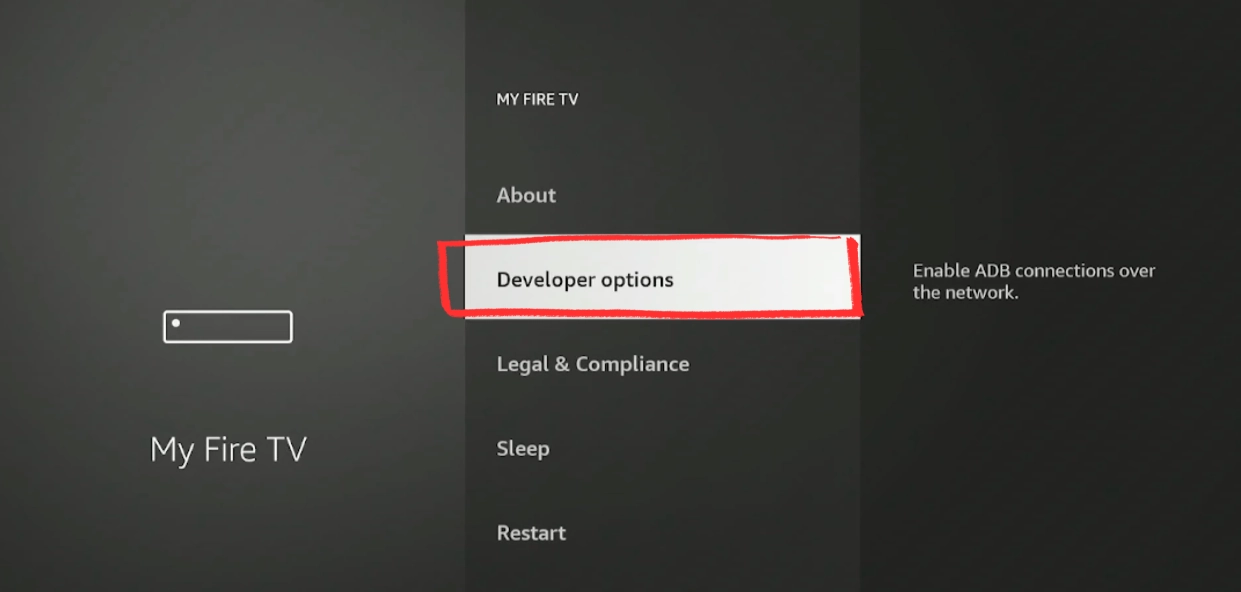
Open Developer Options
Press Back to My Fire TV. Developer Options now shows up in the list — open it.
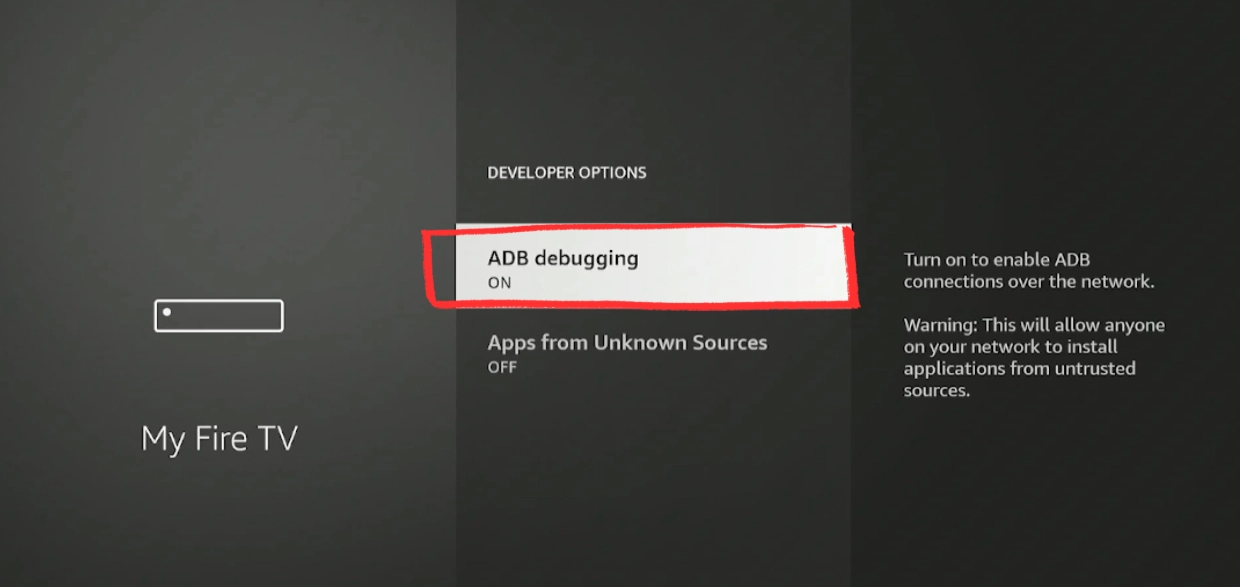
Turn on ADB Debugging
Toggle ADB Debugging to ON and confirm if asked. On newer Fire OS builds this has to be on before the next switch will work.
Let Downloader install apps
Open Install Unknown Apps, find Downloader in the list, and switch it ON. Then press Home.
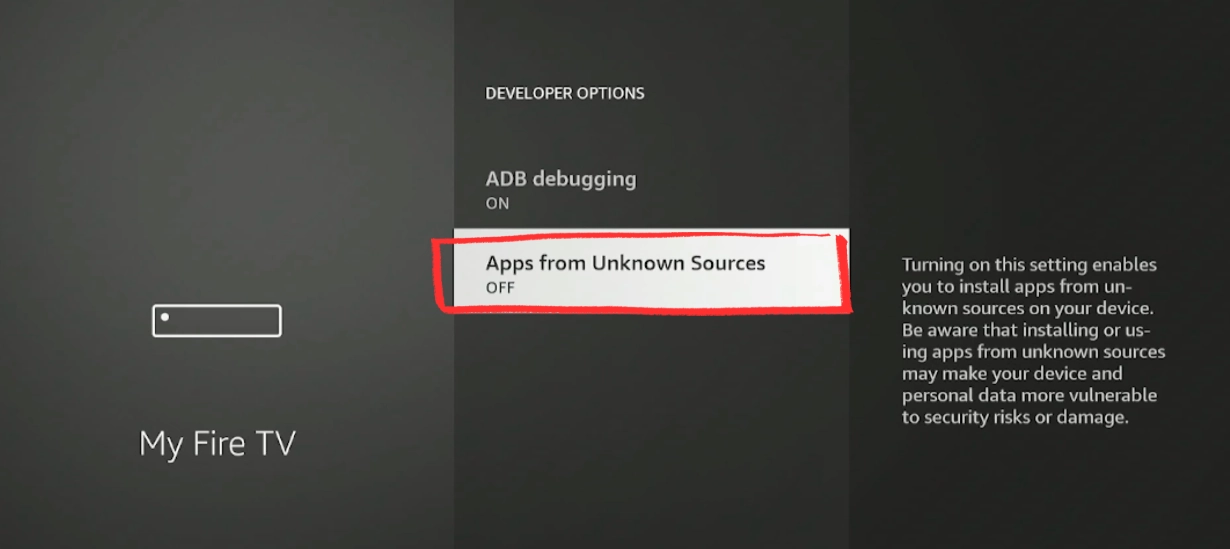
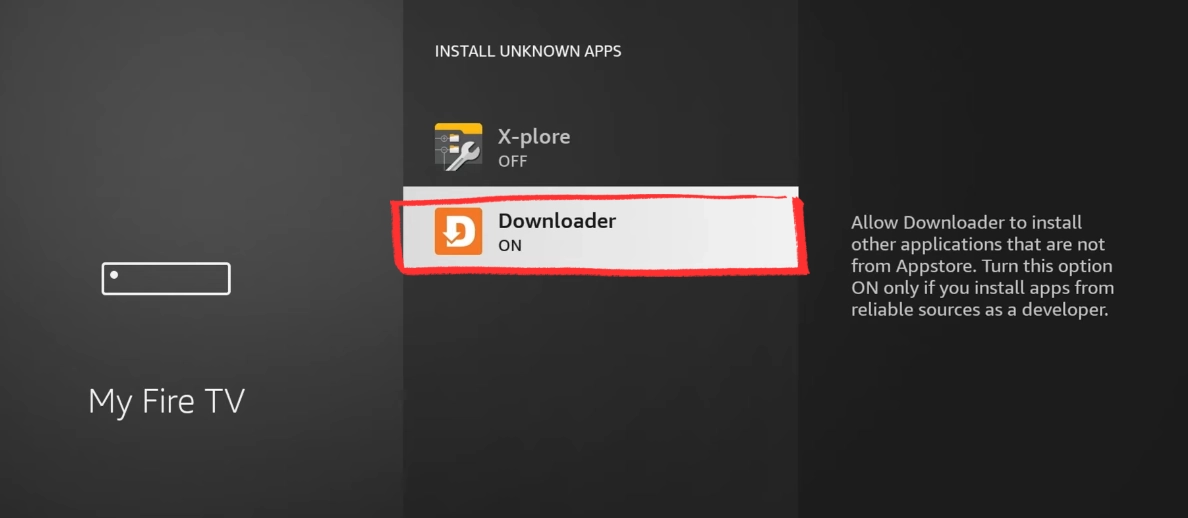
✓ Part 2 done. Developer options are set. Downloader can now install TiviMate.
Enter 272483 and add your playlist
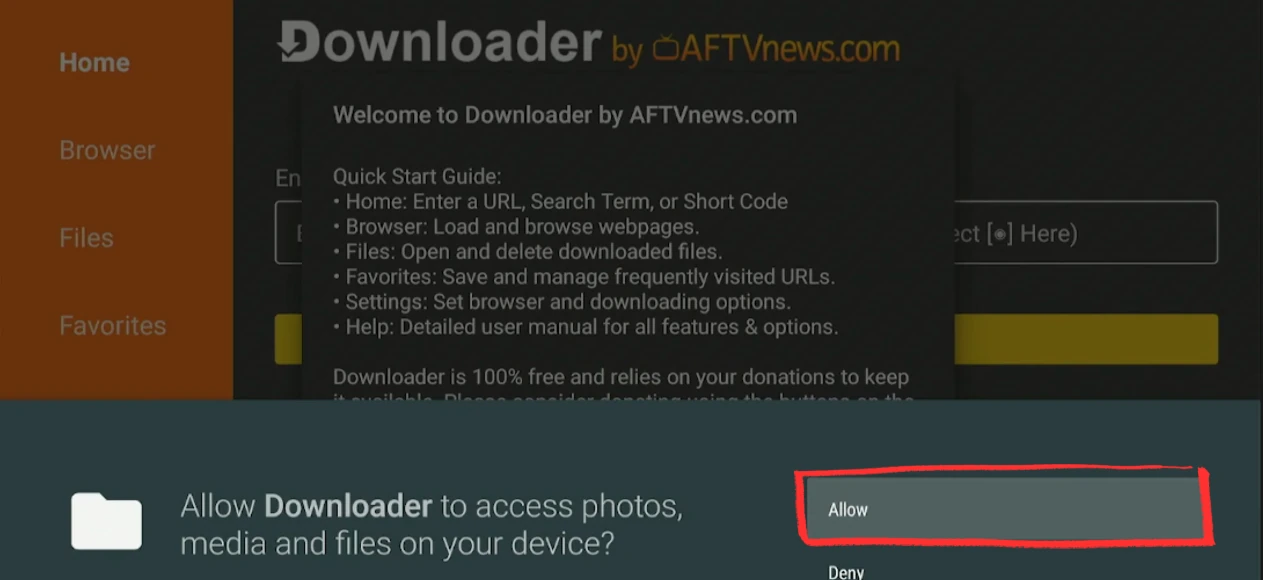
Open Downloader and allow access
Launch Downloader. If it asks for file access, press Allow — it can’t save the APK without it.
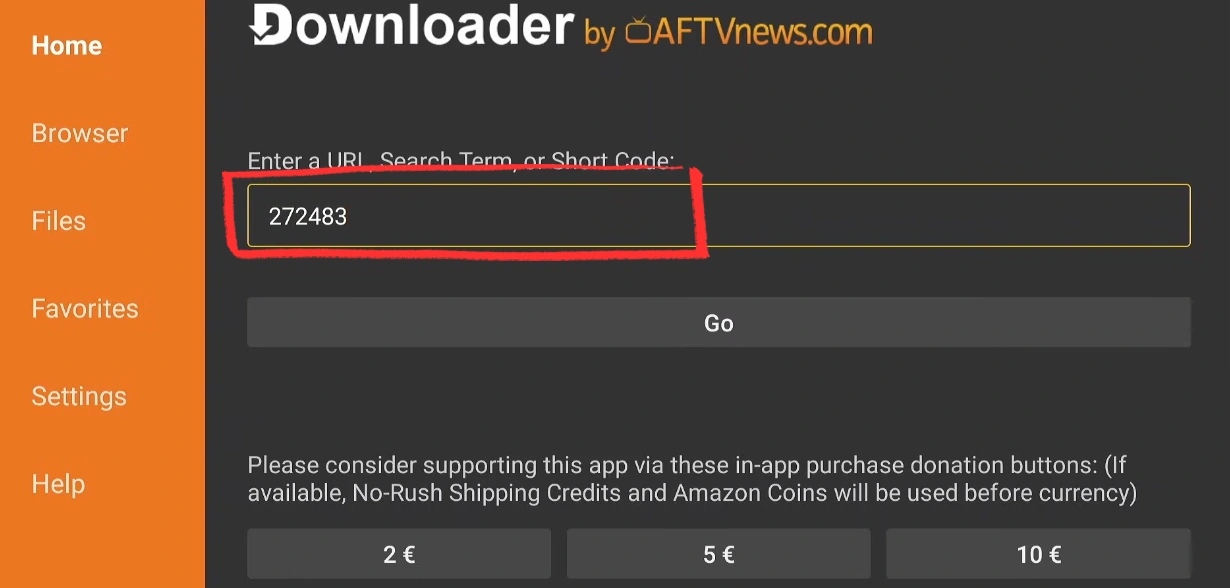
Type 272483 and press Go
In the address field enter 272483 and select Go. Downloader fetches the current TiviMate APK — 15 to 30 seconds on most connections.
Install and open TiviMate
Accept the privacy prompt, press Install, then Open. TiviMate launches straight to the Add Playlist screen on first run. (You can delete the APK file when Downloader offers — you don’t need it any more.)
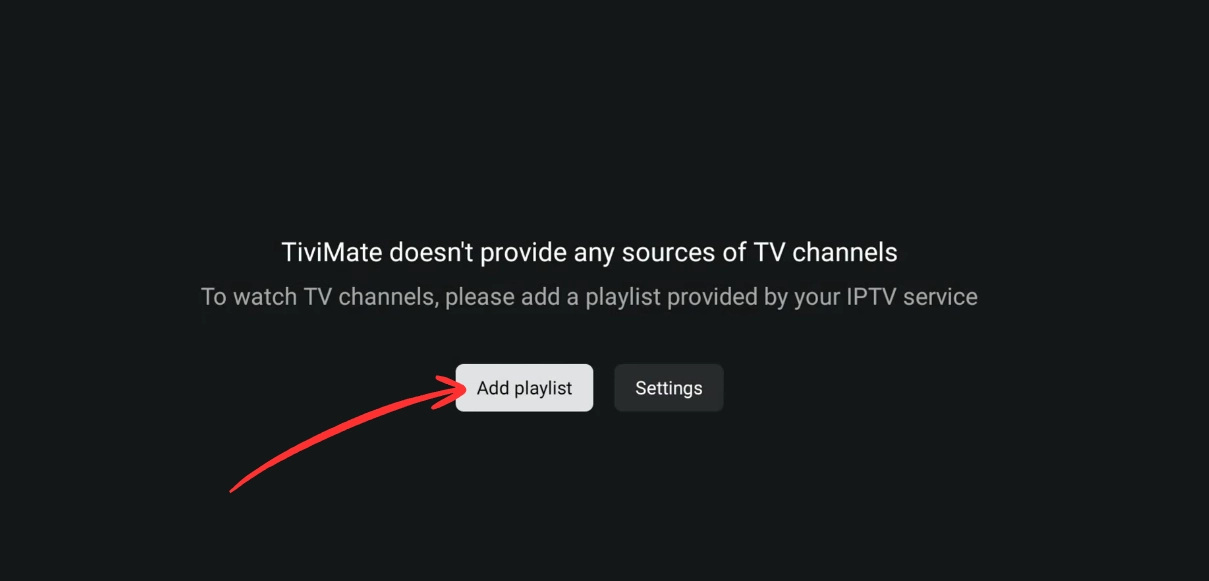
Add your IPTV playlist
Press Add Playlist and pick how your provider gave you access:
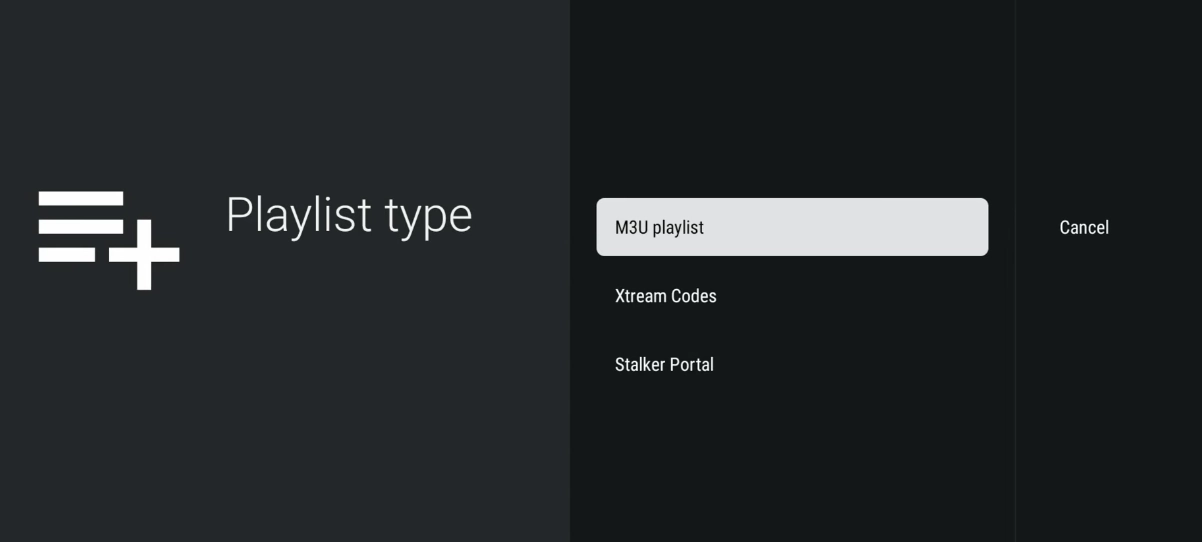
- Xtream Codes — enter Server URL, Username and Password. In my experience these hold up better: they keep working even when a provider shuffles servers, whereas M3U links tend to break.
- M3U URL — paste the playlist link. Quick to start, but you’ll re-paste it whenever the link changes.
Press Next, leave Live TV and VOD ticked, then Done. Channels populate in a minute or two.
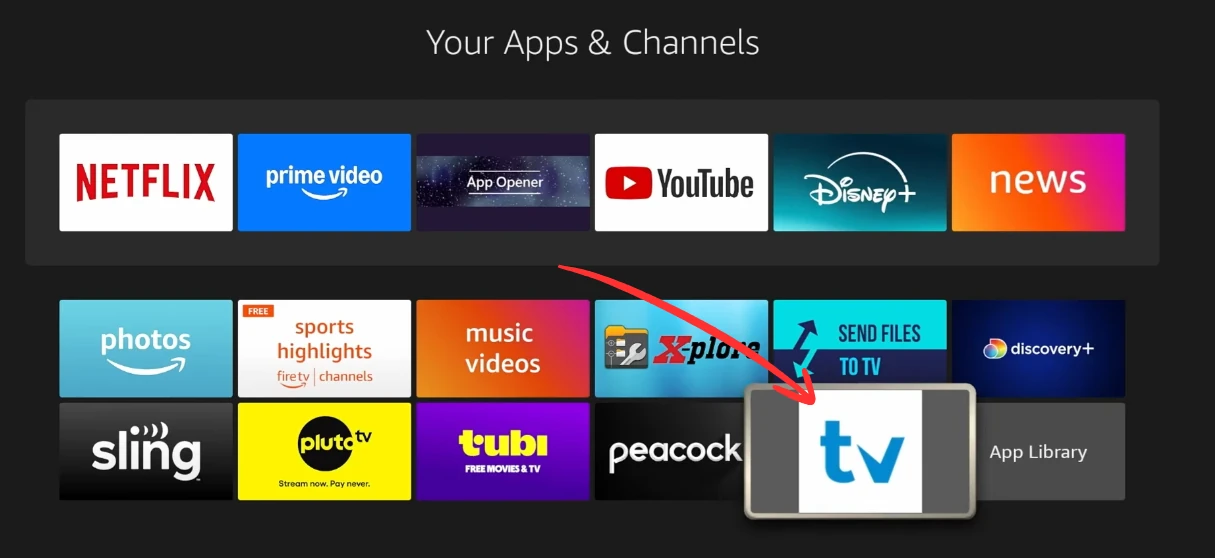
✓ TiviMate is running on your Fire Stick. Channels should be loading. Nothing after 3 minutes? Your credentials are the usual culprit — double-check them.
Fire Stick install problems, solved
Code 272483 won’t load
Type the full URL https://tivimate.com/ in Downloader instead. The short code occasionally rotates; the URL always resolves.
“Install Unknown Apps” greyed out
ADB Debugging has to be ON first. Go back to Developer Options, enable it, then return to Install Unknown Apps.
No channels after adding a playlist
Big playlists take 2–3 minutes. Still empty after five? Your credentials are almost certainly expired or mistyped — re-enter them carefully.
“Invalid credentials”
They’re case-sensitive, and the server URL needs http:// (or https) plus the port, e.g. :8080. Copy-paste — never type by hand.
Constant buffering
Set the buffer to 30 seconds in Settings → Playback, and use Ethernet if you can. On a fast line that still stutters, your ISP may be throttling.
TiviMate crashes on launch
Clear its cache (Settings → Applications → Manage Installed Applications → TiviMate → Clear Cache) and restart. Still stuck? Reinstall with 272483.
Turning on Premium (optional)
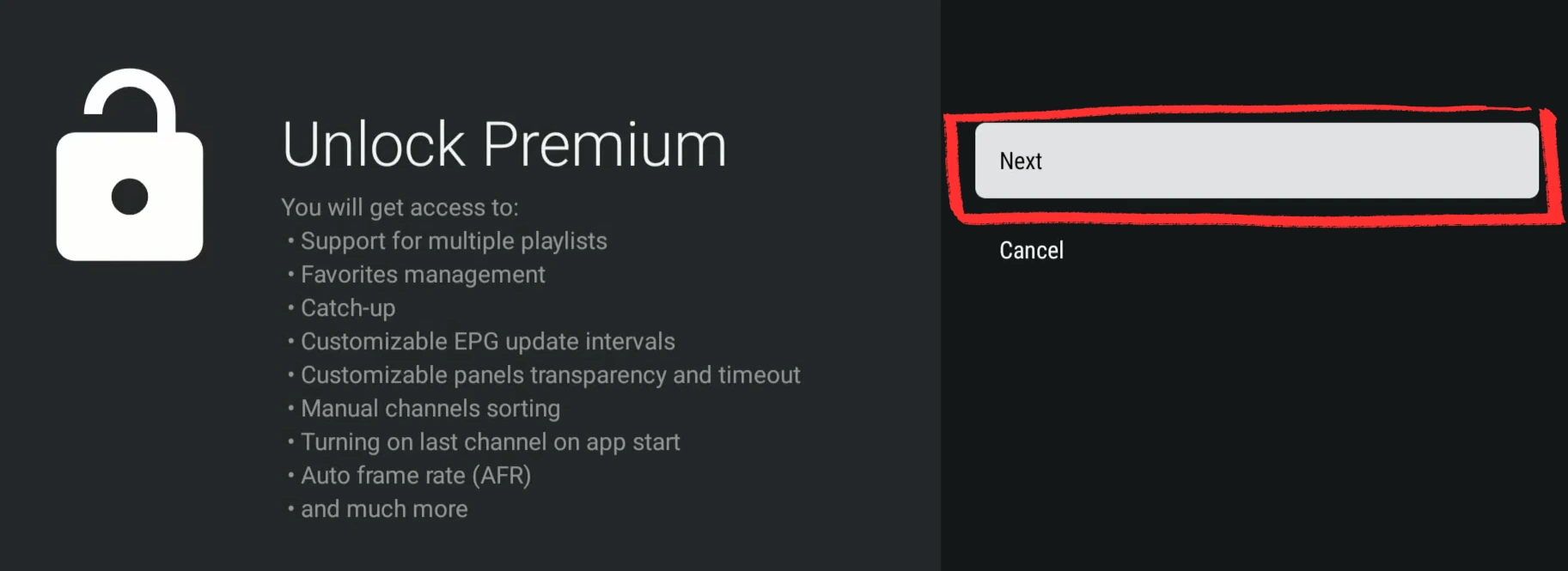
The free version runs one playlist with no favorites, which is fine to start. The moment you want a second provider, channel groups, or recording, that’s Premium — about $9.99/year or $33.99 lifetime, and one license covers 5 devices. Full breakdown on our TiviMate Premium guide.
Buy through the Companion app
Premium is sold via the separate TiviMate Companion app (Google Play) or on tivimate.com — you can’t buy it inside TiviMate itself.
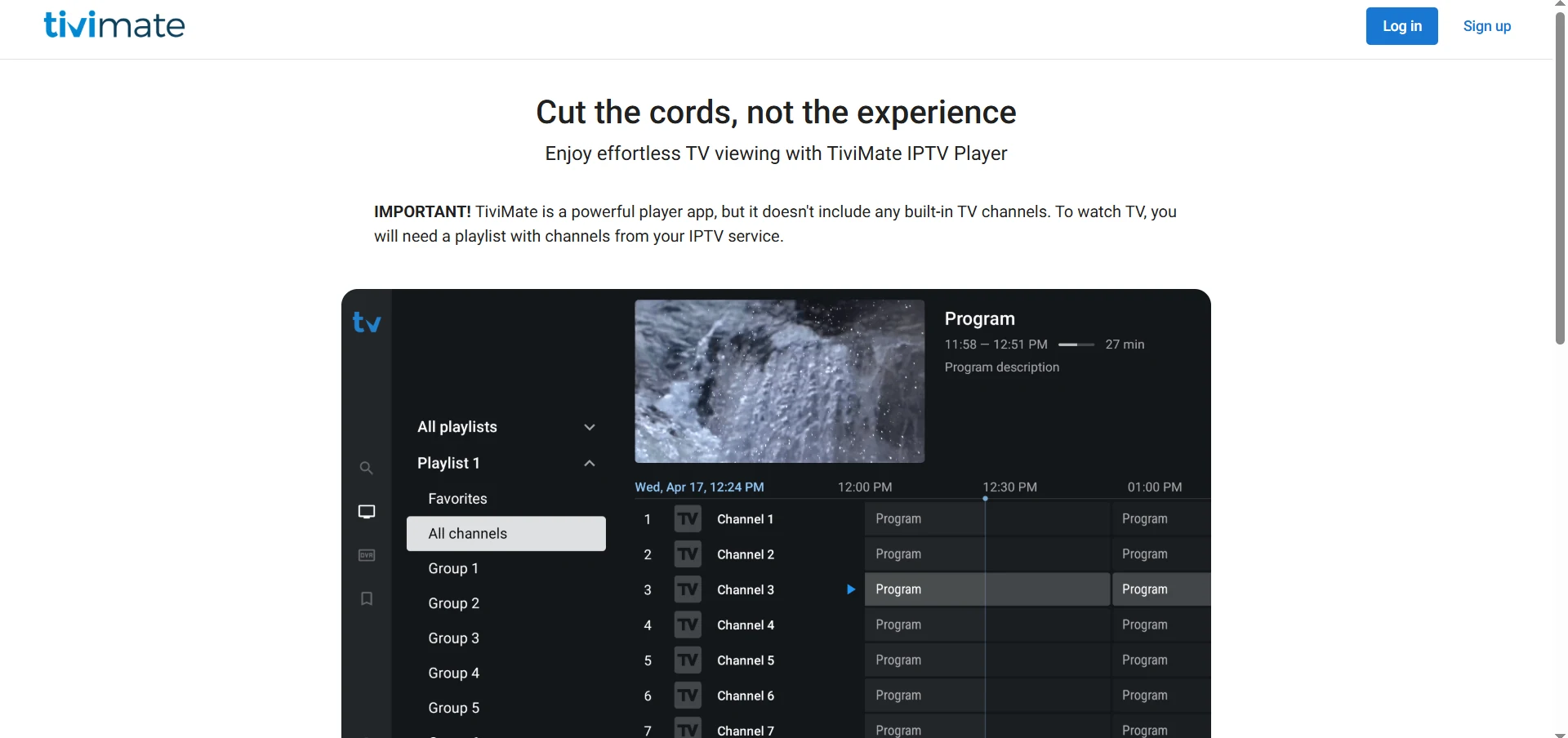
Sign in on your Fire Stick
In TiviMate, open Settings → Unlock Premium (or Account) and log in with the same email. Premium switches on instantly across all your devices.
Fire Stick + TiviMate FAQ
Is TiviMate on the Amazon App Store?
No. Amazon doesn’t list TiviMate, which is why you sideload it with the Downloader app using code 272483. It’s a normal, safe process — you’re pulling the same APK the developer publishes on tivimate.com.
What is the TiviMate downloader code?
It’s 272483. Enter it in Downloader’s address bar and press Go to fetch the latest TiviMate APK. If it doesn’t resolve, use the full URL https://tivimate.com/ instead.
Does TiviMate work on every Fire Stick?
Yes — Fire Stick Lite, Fire Stick 4K, 4K Max and Fire TV Cube all run it. The developer-options steps are identical across models; only tiny menu-wording differences show up on older Fire OS versions.
Do I need a subscription to use TiviMate on Fire Stick?
You need an IPTV subscription for channels — TiviMate is only the player. You do not need TiviMate Premium to watch; the free version plays a single playlist. Premium just adds multi-playlist, recording and favorites.
Why is TiviMate showing no channels after install?
Almost always the playlist. Give large lists 2–3 minutes, then re-check your Xtream Codes or M3U details — expired or mistyped credentials are the number-one cause. The install itself rarely fails silently.
Can I install TiviMate on Fire Stick without a computer?
Yes. The whole thing runs on the Fire Stick itself through Downloader — no PC, no ADB from a laptop, no cables. That’s the entire point of code 272483.
Next steps & other devices

TiviMate Premium: cost & features
TiviMate Premium (aka TiviMate Pro): what it unlocks, real 2026 prices ($9.99/yr or $33.99 lifetime) and how to buy the subscription, plus…
Install on Android TV Box
Install TiviMate on any Android TV box, Nvidia Shield, Onn 4K, Mi Box, from the Play Store or by sideloading with code 272483. Step-by-step…

All setup guides
Step-by-step TiviMate setup guides for Fire Stick, Android TV, PC, Mac and more, real screenshots and downloader code 272483.